Bulk Actions in a Content Asset Workflow
Kapost is introducing Bulk Action feature in the Content Asset Workflow. Users can now take actions in Bulk within the workflow panel of a content asset. This can be enabled if and when you want to use it providing the opportunity to be even more efficient. Bulk actions respects role based permissions or MAoC if enabled, refer to Members Permissions and Manage Access on Content.
-
On the Home page left navigation bar, click on
 icon.
icon. -
Select the desired content from the list.
-
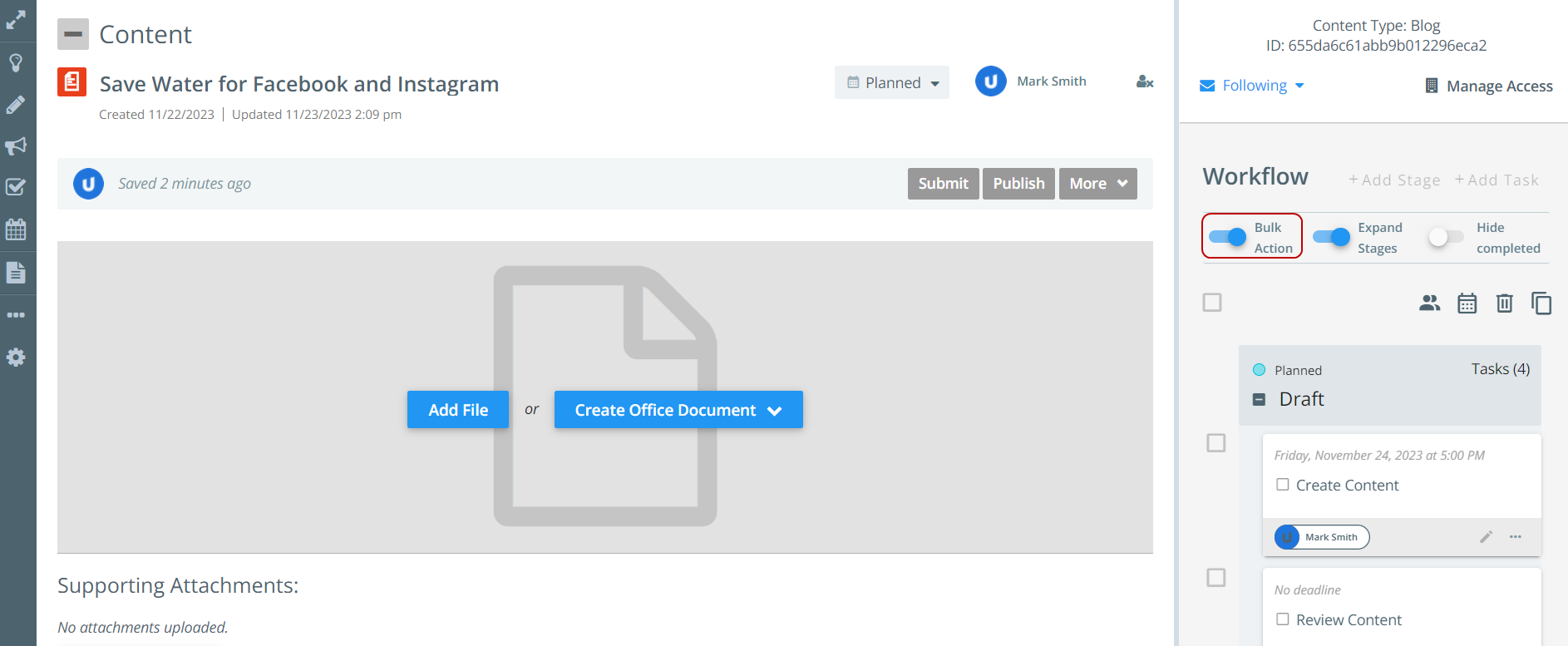
On the workflow panel, turn On the Bulk Action toggle button to enable the feature.
-
Select the desired tasks and perform the following actions:
 -
- 
Note:
-
When the Bulk Actions toggle button is turned On, the tasks cannot be edited individually or reordered by using drag and drop method. You can only assign/reassign task assignee, reschedule, delete and duplicate the tasks in bulk.
-
To open the Edit Task panel for each task, you must turn Off the Bulk Actions toggle button. The toggle button is disabled once you start editing the task.
-
You cannot perform bulk actions on the tasks that are completed. However, you can bulk duplicate completed tasks if the feature is enabled in Content Settings. The duplicated tasks are displayed as open tasks.
-
Bulk Actions toggle button will not appear if you do not have permissions to complete Bulk Actions.
-
A Refresh Workflow notification appears on the workflow when multiple users update the workflow of the same content simultaneously.
Assign/Reassign the Task Owners
To assign/reassign the task owners:
-
On the workflow panel, slide the Bulk Action toggle button.
-
Select the desired task(s) and click
 icon.
icon. -
Enter the name of the assignee(s) to select them from the drop-down list and click Save.
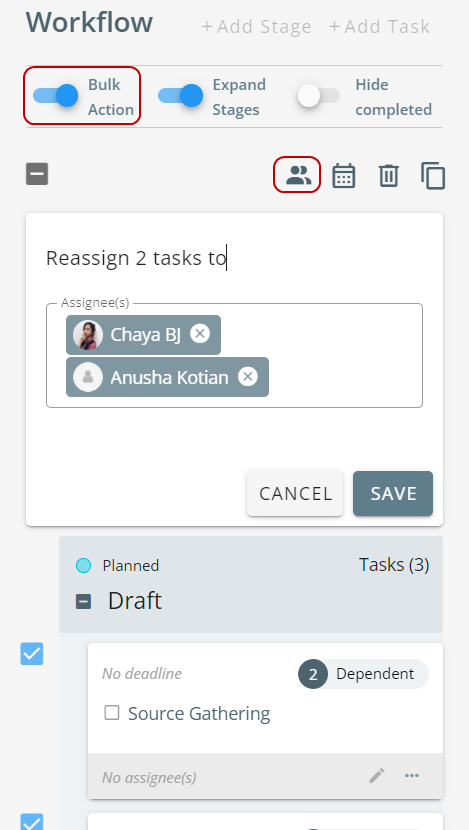
Note: If a user was already assigned to the task(s) they will automatically appear. You can add additional assignees or remove the previously assigned user.
Reschedule the Task
To reschedule the task:
-
On the workflow panel, slide the Bulk Action toggle button.
-
Select the desired task(s) and click
 icon.
icon. -
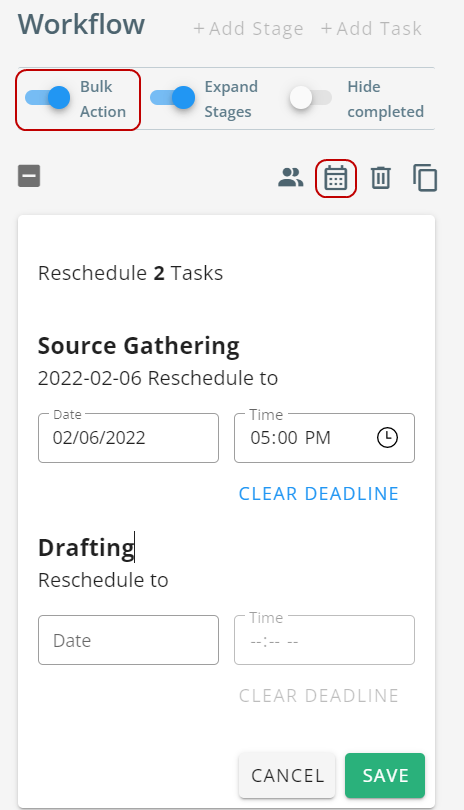
Enter the desired date and time to each of the task(s) and click Save.
Note: Smart deadlines cannot be rescheduled while using bulk actions.
Delete the Task
To delete the task:
-
On the workflow panel, slide the Bulk Action toggle button.
-
Select the desired task(s) and click
 icon.
icon. -
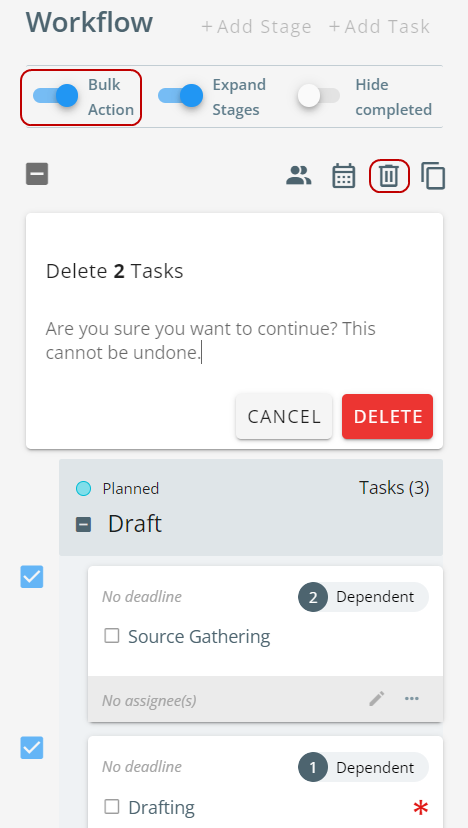
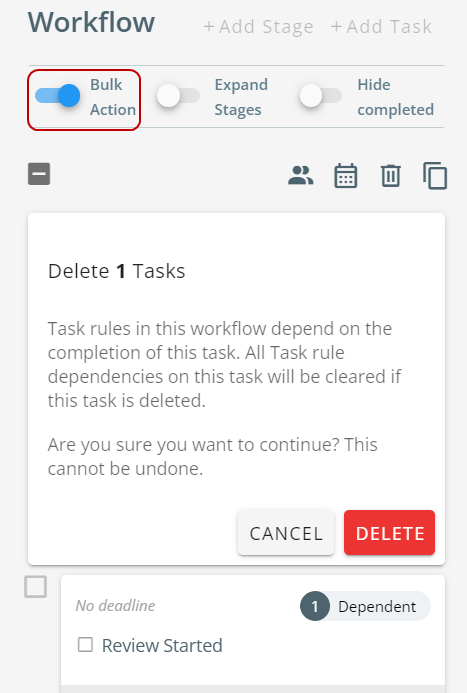
In the confirmation dialog box, click Delete.
Duplicate the Task
To duplicate the task:
-
On the workflow panel, slide the Bulk Action toggle button.
-
Select the desired task(s) and click
 icon.
icon. -
In the confirmation dialog box, click Duplicate.
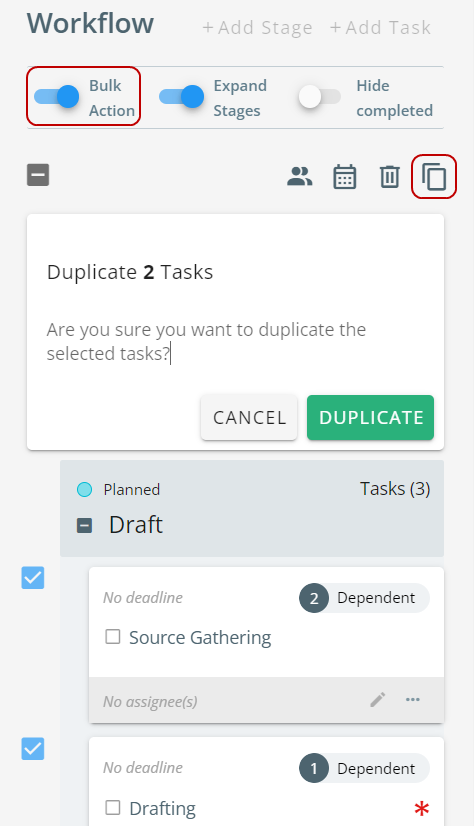
Note: The Duplicated task title will display (Copy) and should appear directly below the task you selected to be duplicated.
Complete or Reopen the Task
Note: This functionality is applicable only for Admins.
Complete Tasks
-
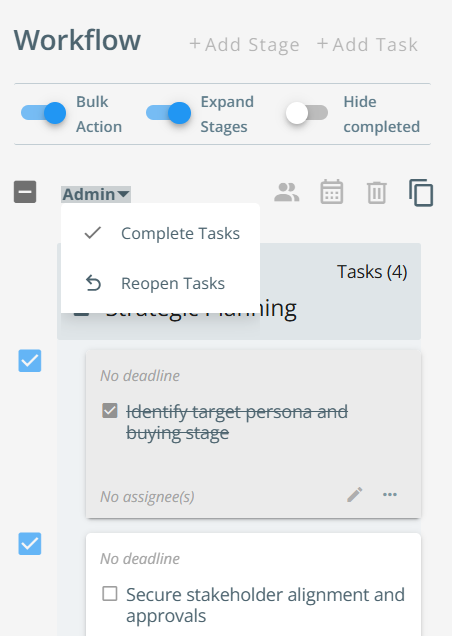
On the workflow panel, slide the Bulk Action toggle button.
-
Select the desired task(s).
-
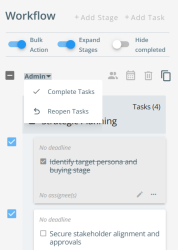
From the Admin drop-down, select Complete Tasks.
-
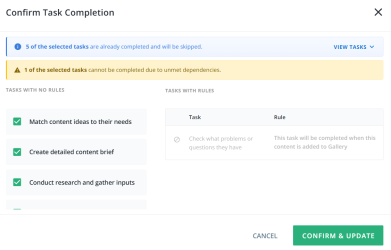
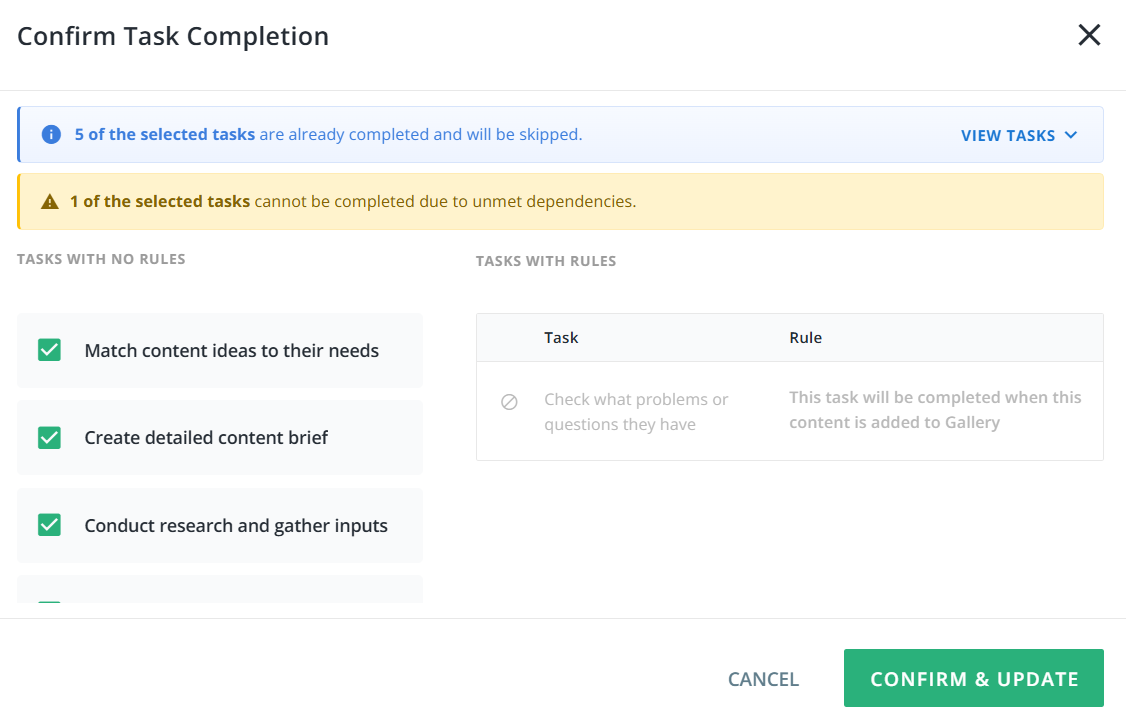
In the confirmation dialog box, review the selected tasks and associated rules, if any. Use the checkboxes to select or deselect tasks as needed.
If the confirmation dialog box displays tasks with unmet dependencies, review the warning message and the affected tasks.
-
Click Confirm & Update to complete the eligible selected tasks. This will complete all the selected tasks and apply all its associated rules.
Reopening Tasks
-
On the workflow panel, slide the Bulk Action toggle button.
-
Select the desired completed task(s).
-
From the Admin drop-down, select Reopen Tasks.
-
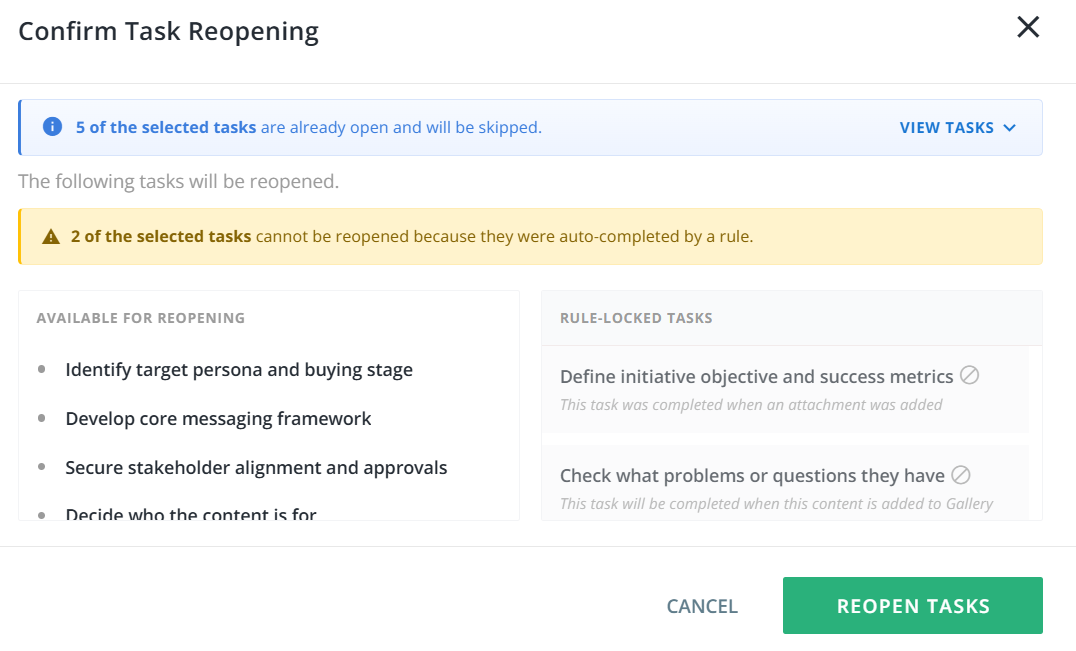
In the confirmation dialog box, review the selected tasks and associated rules, if any.
If the confirmation dialog box displays rule-locked tasks, review the warning message and the affected tasks.
-
Click Reopen Tasks to reopen all eligible selected tasks
Note:
-
The rules associated with tasks are executed in the same sequence as they appear in the table.
-
The success message displays the actual number of tasks completed or reopened and also the total number of rules applied.
-
Two new Activity Types have been added to Member Activity - Bulk Completed Content Workflow Tasks and Bulk Reopened Content Workflow Tasks to track the bulk task status update.
-
Activity logs are also captured on the Content Details page under the Activity tab.